The Copilot course your licences have been waiting for
Most people meet Copilot by accident. A button appears in an app they have used for years, they click it once, get an answer that is nearly right, and quietly stop. The licences get paid for and the usage numbers do not move. This is 13 modules of proper training for that problem, already written — a Word document you import, brand and publish under your own name.
Free, no email required. No placeholders to fill in — it is written to be true in any organisation with Copilot licences.
See the finished course

Microsoft 365 Copilot: From Prompt to Productivity
13 modules · 276 blocks
This is the document above, imported and published. Read the whole thing in your browser — no signup, no email.
What is in it
Thirteen modules, written for ordinary office work — email, documents, spreadsheets, meetings, and the small mountain of writing and chasing that fills a week. They build on each other, so working through in order beats jumping to the app you use most.
Foundations
Short, and everything after it assumes it.
- Start here — what this course gives you
- What Copilot is, and which licence you have
- The prompt formula that fixes most bad output
App by app
Copilot inside the tools people already have open. Each module stands on its own.
- Teams — meetings, recaps and catching up on what you missed
- Outlook — taming the inbox and writing replies faster
- Word — drafting, rewriting and summarising
- Excel — asking questions of your data
- PowerPoint — building a deck that argues something
Workflows and judgement
Where the value actually sits: joining the apps up, and knowing when not to trust the answer.
- Brainstorming, planning and staying organised
- Your weekly work summary — timesheets and management updates from evidence
- Check before you trust, send or act
- The everyday prompts library — 34 prompts across six kinds of work
- FAQs, resources and the one-page quick reference
Why this one rather than a vendor deck
There is no shortage of Copilot material. Almost all of it is written to sell the product. This is written to make people competent with it, which means saying the unflattering parts out loud.
It tells people what Copilot is not
The course opens by calling Copilot a capable first-draft partner rather than an oracle, and returns to it in every module. You remain accountable for anything you send or act on — not Copilot, not IT, not whoever bought the licence. Training that oversells lands badly with the first wrong figure in a client email.
It deals with the licence problem head-on
Almost every argument about whether Copilot is any good is really an argument between people on different licence tiers. The course explains all three, shows learners how to work out which one they have, and flags every feature that needs the top tier at the point it appears — so nobody spends a fortnight trying a workflow their licence cannot run.
It teaches one formula, then reuses it everywhere
Goal, context, source, output. Each missing part produces its own kind of bad answer, so a learner can diagnose a disappointing result by reading it rather than giving up. All 34 prompts in the library are built on the same skeleton, which is how the library teaches rather than just supplies.
It has a whole module on checking the output
A five-point check that takes under a minute, the four specific ways Copilot goes wrong, and the workplace failures that cost most — invented commitments, flattened summaries, and numbers that look right. This is the module your risk and compliance people will ask to see.
The one-page quick reference
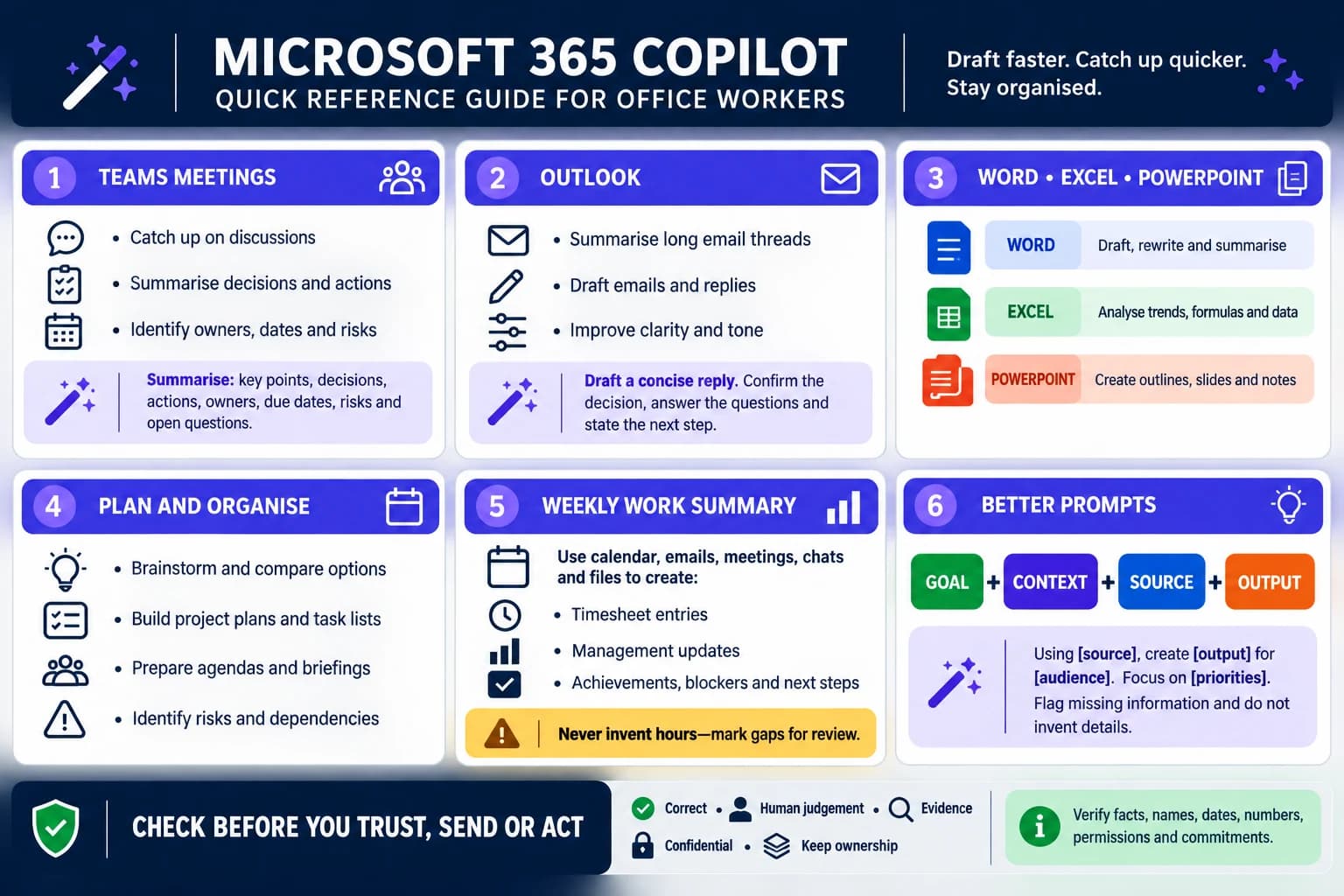
The last module ends with this. It is the page people pin next to their monitor and the reason they come back to the course — six panels covering meetings, email, the Office apps, planning, the weekly summary and the prompt formula, over a reminder to check before you trust, send or act. It ships inside the document.
From document to published course
There is no customisation phase to schedule. The course is finished; these steps are about getting it in front of people.
- 1
Download the document
An ordinary Word file, about 23,000 words. Open it in Word, Google Docs or Pages and read it the way a learner would. There is nothing to fill in — no organisation name, no system names, no policy gaps. It is written to be true in any organisation that has Copilot licences.
- 2
Import it to CourseConverter
Create a free account, choose New course and upload the file. The headings become 13 modules, and the tagged content comes across as callouts, accordions, tabbed sections, process steps, matching activities and knowledge checks. You have a working course before you have edited a word.
- 3
Add your own screenshots
This is the only real work, and it is optional. The document carries 11 screenshot briefs and 9 diagram briefs, each written as an instruction: what to capture, and why it helps. Shoot them in your own tenant so learners see the Copilot button where it actually sits for them, or generate the diagrams with the AI image block and move on.
- 4
Brand it
Set your colours and logo. If your organisation has a Copilot acceptable-use position, a data-classification rule or an approved-tools list, add it as a callout in Module 1 and Module 10 — those are the two places learners will look for it.
- 5
Publish it
Export SCORM 1.2 for your LMS, or a standalone HTML bundle to host anywhere. Free and paid plans both build the course; SCORM export needs a paid plan.
What comes across on import
The document is tagged, so the interactivity is already built. None of this is something you assemble afterwards in an authoring tool.
- 13 knowledge checks, written as workplace situations rather than trivia
- 12 matching activities
- 19 accordion sections for the questions people actually ask
- 12 process walkthroughs and 8 tabbed comparisons
- 34 copy-and-paste prompts, grouped by meetings, email, writing, data, planning and reporting
- A confirmation step at the end of every module, so completion means something in your LMS
- A one-page quick reference guide, included as an image
If you want to see how the tagging works so you can write your own course this way, the free Word template and block reference covers every block type in a couple of pages.
Get it in front of people this week
Your organisation is already paying for the licences. The gap between paying for them and getting anything back is training, and the training is written. Download the document, import it, and put a real course in your LMS instead of another lunch-and-learn recording.
Microsoft, Microsoft 365, Copilot, Teams, Outlook, Word, Excel and PowerPoint are trademarks of Microsoft Corporation. This course is not affiliated with or endorsed by Microsoft.